AI Photo Enhancer & Unblur
Unblur blurry photos, boost resolution and fix low-light shots in one tap, automatic AI processing with no Photoshop.
Try it now for freeWhat is this feature?
Andalusi's photo enhancer improves the quality of any photo and boosts its resolution automatically with AI. It sharpens blurry and low-light shots, revives old pictures, and corrects lighting, colour and detail, all in one tap with no Photoshop and no manual settings.
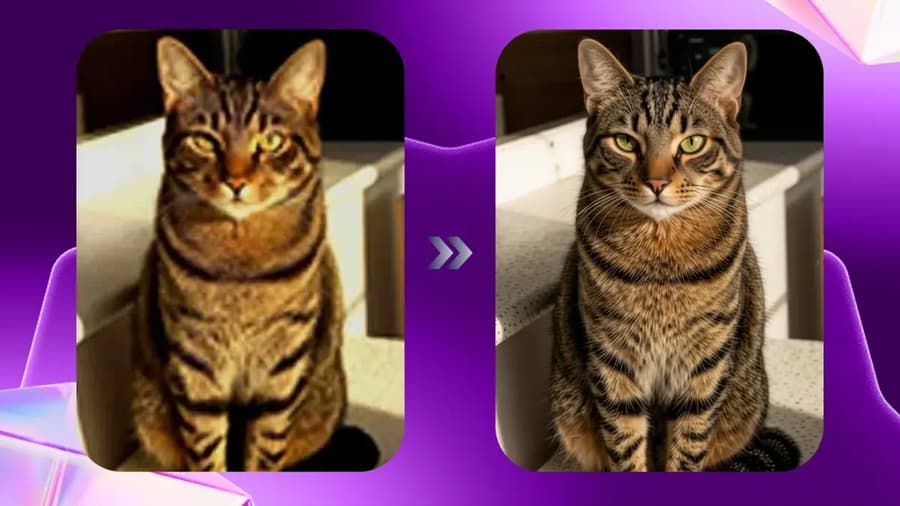
Andalusi's photo enhancer improves the quality of any photo and boosts its resolution automatically with AI. It sharpens blurry and low-light shots, revives old pictures, and corrects lighting, colour and detail, all in one tap with no Photoshop and no manual settings.
See the difference yourself
Drag the slider to compare the photo before and after enhancement
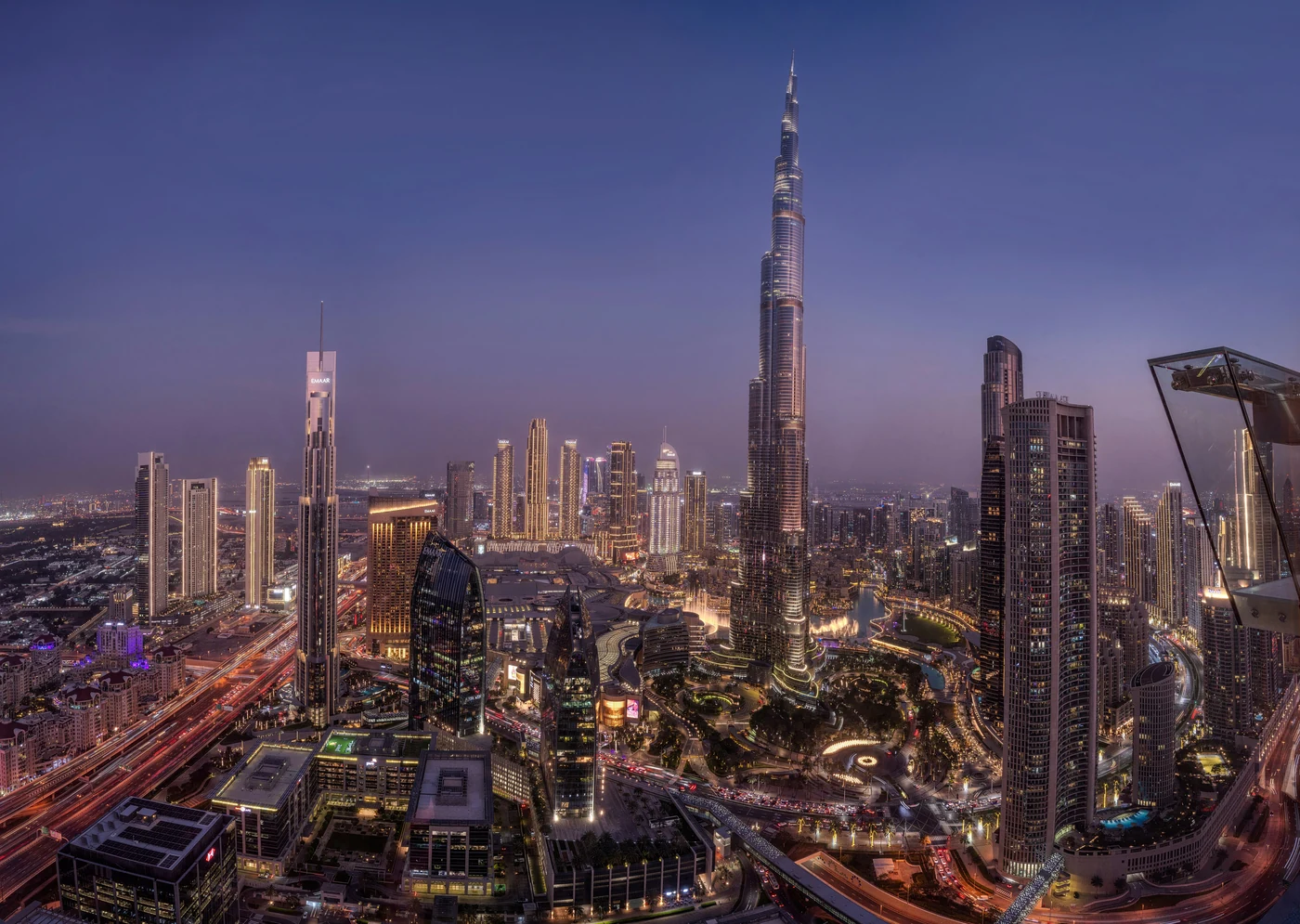
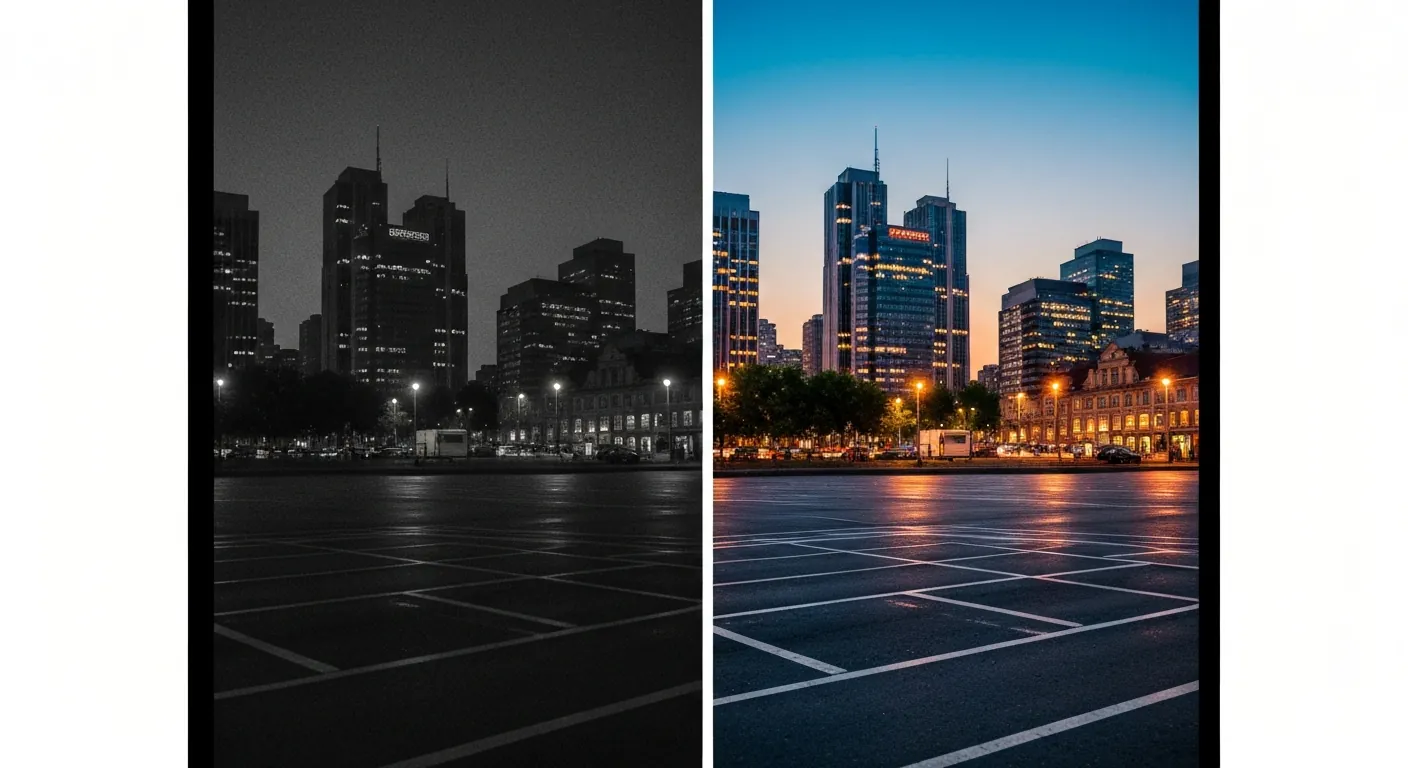
From blurry to clear
A blurry, dim or hastily-shot photo comes out sharp and bright after processing. No filters and no manual tuning, the AI reads the image and fixes it.
Works on any photo, even old ones
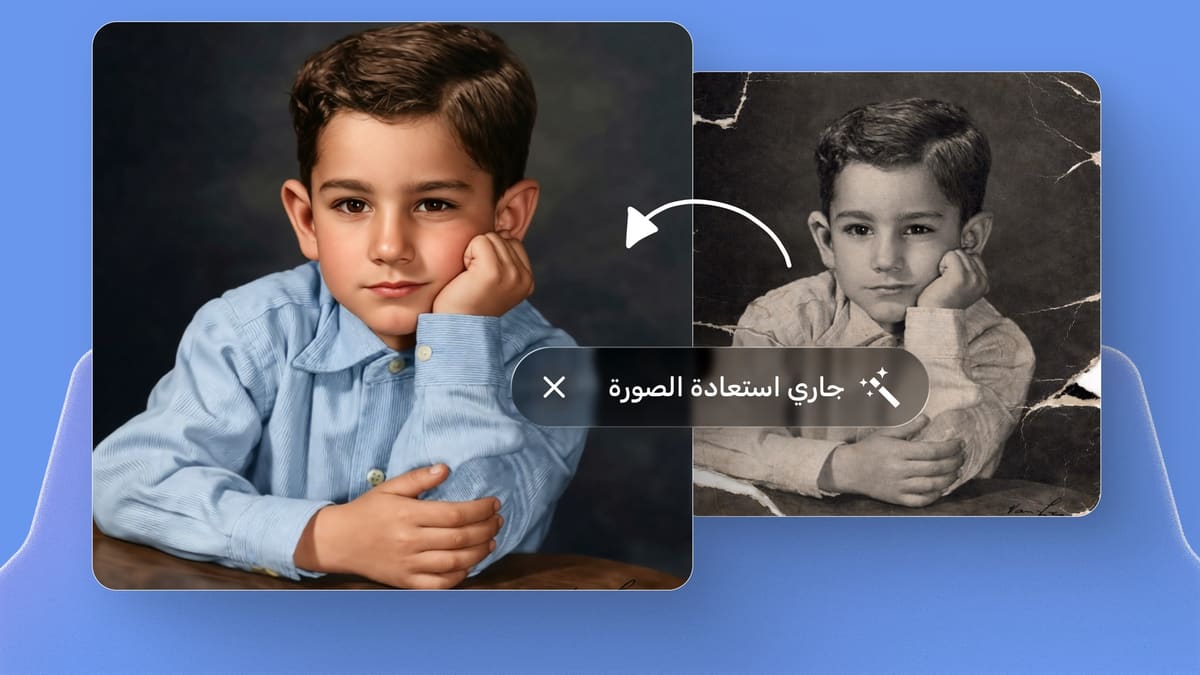
A portrait, a product shot or a low-quality old photo, automatic enhancement lifts the quality, boosts resolution and gets the best version out of it in seconds.
Upscaling a photo: enhance photo quality with AI
A quick walkthrough: open Andalusi, pick the enhance tool from the AI tools menu, upload your photo, and wait a few seconds for AI to process it at higher quality.
- Pick the tool from the AI tools menu
- Upload the photo you want to enhance
- Automatic processing in a few seconds
When to use it
Sharpen product photos
Make your product shots look professional before you post them to your store or social media.
Fix blurry and low-light shots
Blurry, dim and low-light photos come out clear and bright after processing.
Revive old photos
Bring your old low-resolution photos back to life, better clarity and colour in seconds.
Prep photos for design
Enhance your photo before dropping it into a template or design so the final result looks professional.
Simple steps
How to use it
- 1
Open the photo in Andalusi
Go to the AI tools menu and pick the photo enhancement tool.
- 2
Upload your photo
Choose the photo you want to enhance, AI analyses it and lifts the quality and resolution in a few seconds.
- 3
Save or add to your design
Save the enhanced photo in high quality, or drop it straight into the design you're working on.
Frequently asked questions
How do I enhance photo quality with AI?
Can it unblur a blurry photo?
Can I improve the quality of old photos?
Can I upscale a photo without losing quality?
Is photo enhancement free in Andalusi?
Download Andalusi for free
Over a million designers use Andalusi. Join them and start designing now.