AI Object Removal
Wipe any unwanted object from your photo, a person, text, a watermark or a blemish, and AI rebuilds the background seamlessly.
Try it now for freeWhat is this feature?
Andalusi's object removal wipes anything you don't want in a photo, a passer-by in the background, text or a watermark, distracting objects, or skin blemishes and spots. Brush over the area and AI rebuilds the background in its place naturally, leaving no trace, so the photo comes out clean and ready to share.
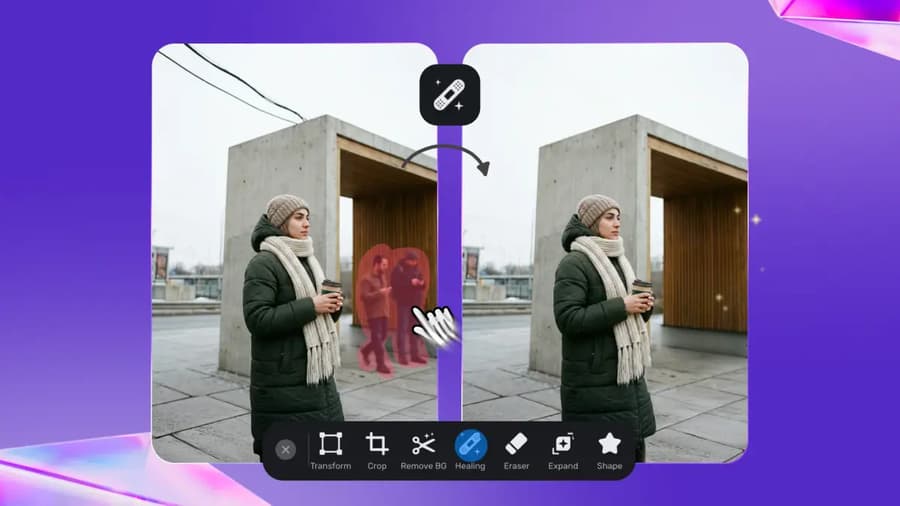
Andalusi's object removal wipes anything you don't want in a photo, a passer-by in the background, text or a watermark, distracting objects, or skin blemishes and spots. Brush over the area and AI rebuilds the background in its place naturally, leaving no trace, so the photo comes out clean and ready to share.
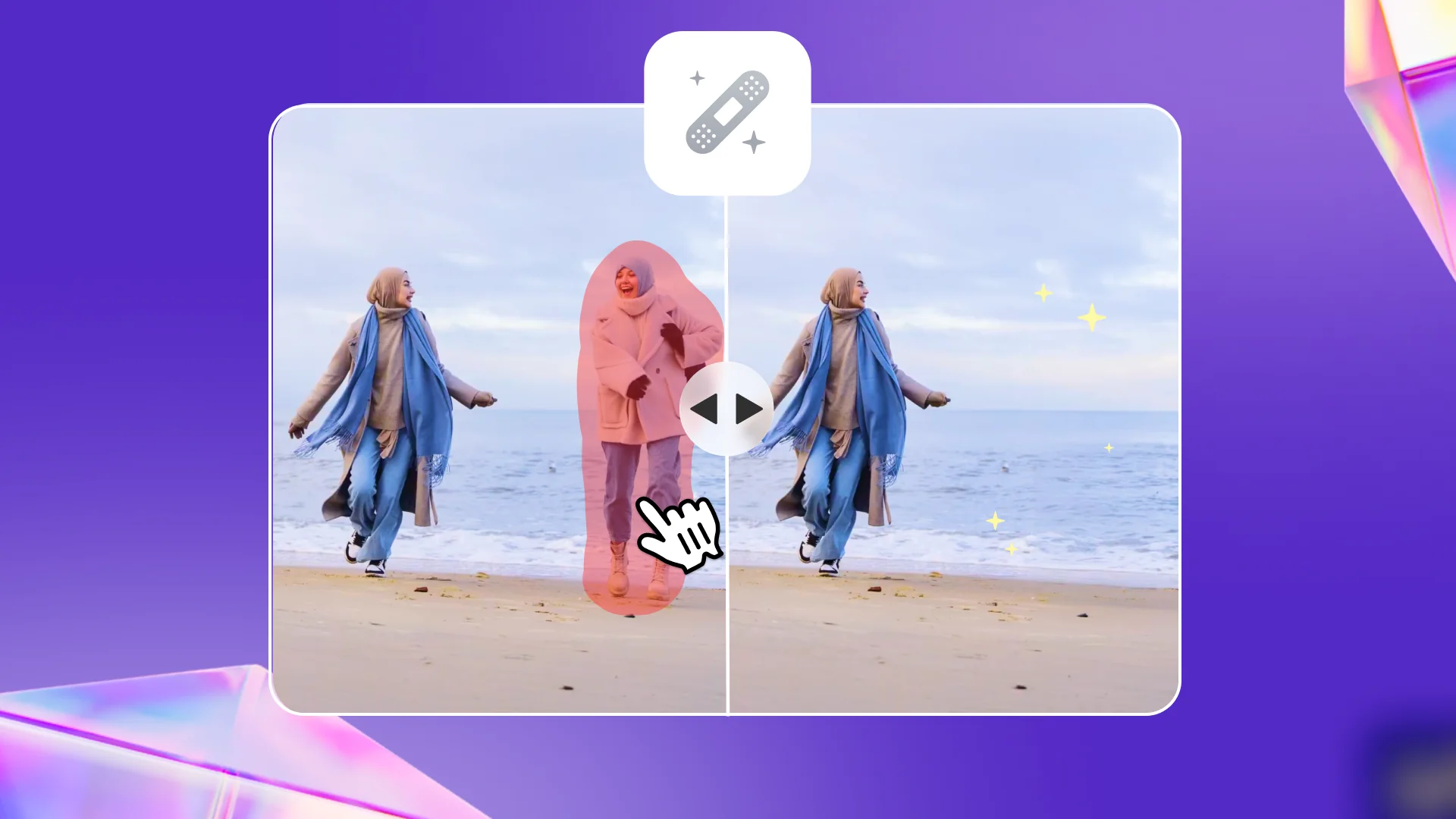
Remove anything that distracts
A passer-by in the background, a wire or a stray object, brush over it and it disappears, with a naturally rebuilt background.
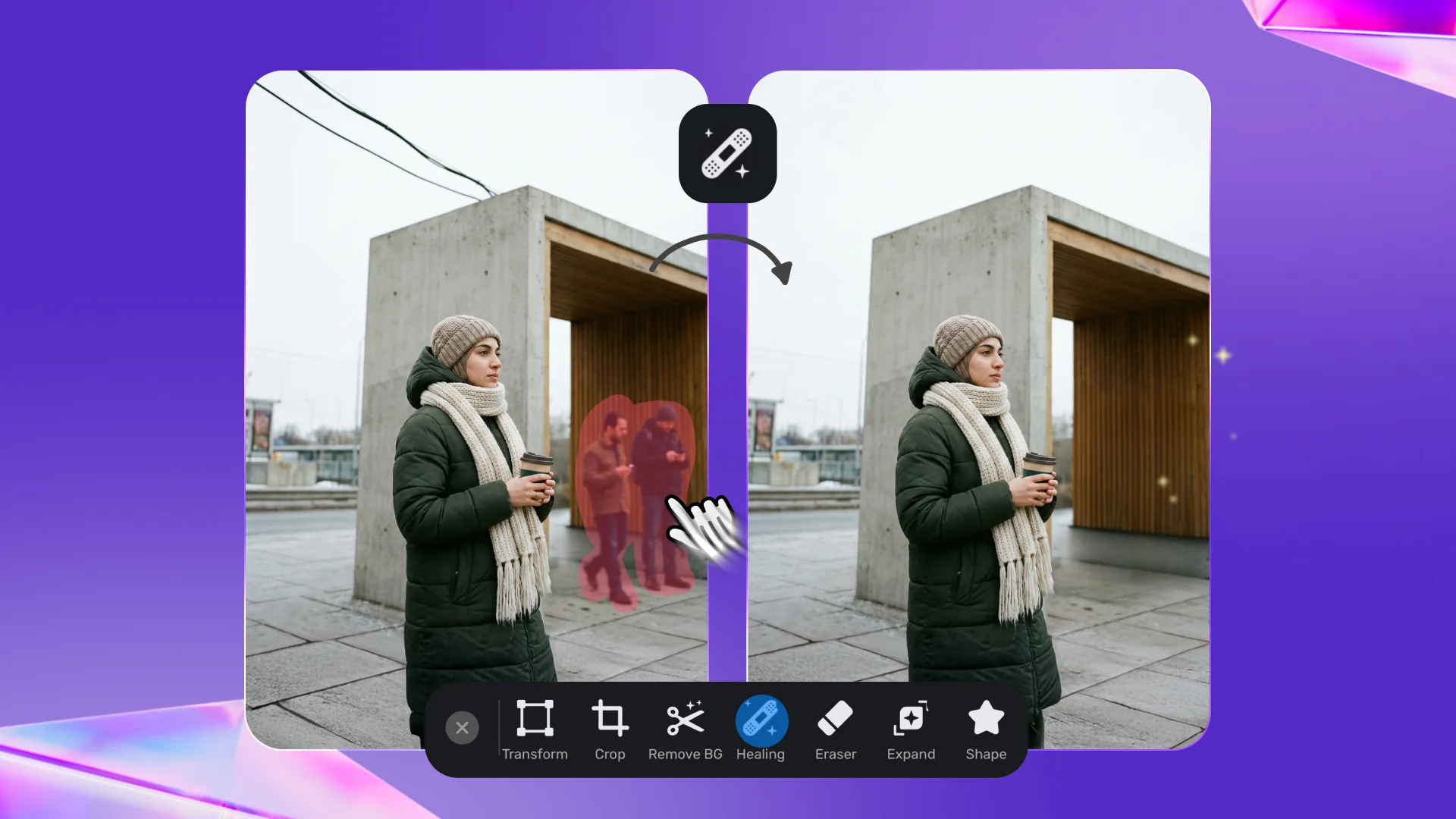
Wipe text and watermarks
Remove text, a watermark or a logo from any photo without leaving a gap or distortion behind.
Removing objects from photos with AI, watch it work
Smoothing skin and removing blemishes from photos
A practical walkthrough for clean, natural skin, add your photo, open the object-removal tool, zoom in and mark the blemishes, and repeat for any area that needs a touch-up.
- Open the object-removal tool and add your photo
- Zoom in and mark the blemish area
- Shrink the brush for fine areas
When to use it
Remove people from the background
Wipe a passer-by or a crowd from your photo's background so your subject stands alone in the scene.
Remove text and watermarks
Take out text, a watermark or a logo from photos to get a clean version.
Smooth skin and remove blemishes
Clean spots and blemishes from portrait shots so skin looks clear and natural.
Clean up product photos
Delete distracting objects and reflections from your product shots before publishing to your store.
Simple steps
How to use it
- 1
Add your photo
Open Andalusi, add the photo, then go to the object-removal tool.
- 2
Mark what to remove
Zoom in and brush over the object or area, shrink the brush size for fine areas.
- 3
Let AI fill the space
Andalusi rebuilds the background where the object was, naturally, repeat for any other part, then export.
Frequently asked questions
How do I remove an object or a person from a photo?
Can I remove text or a watermark from a photo?
Does it work for smoothing skin and removing blemishes?
Does it leave a trace where the object was?
Is object removal free in Andalusi?
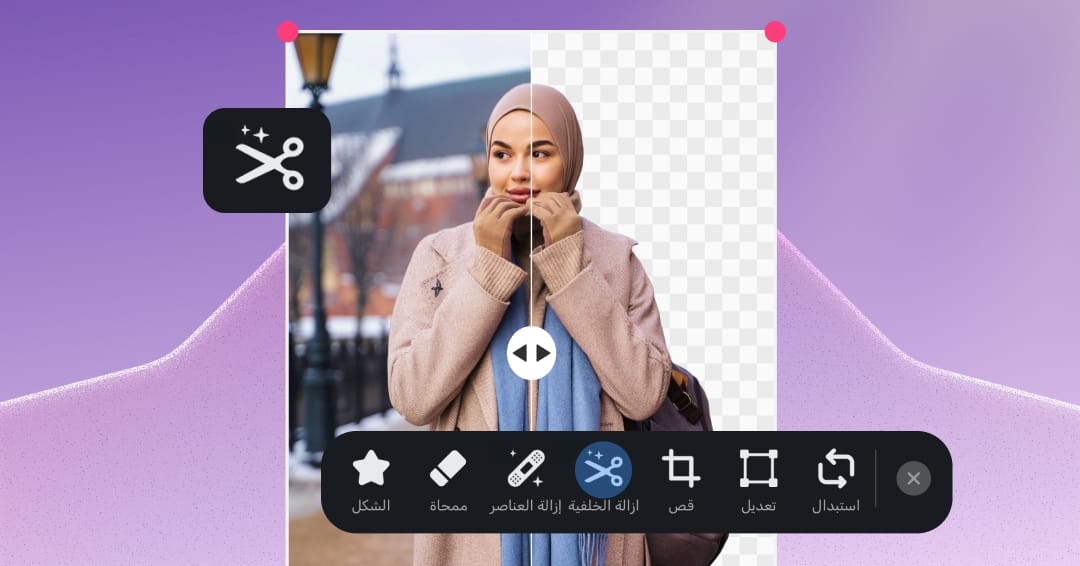
Download Andalusi for free
Over a million designers use Andalusi. Join them and start designing now.