AI Image Expander
Expand or enlarge any photo beyond its edges, turn it into a story or add room for text, and AI fills the gap naturally.
Try it now for freeWhat is this feature?
Andalusi's image expander uses AI outpainting to enlarge any photo beyond its original edges, naturally and consistently with its content. Turn a square photo into a 9:16 story size, add space for text, or extend the background to fit any size, without cropping any part of the image and from a single tap.
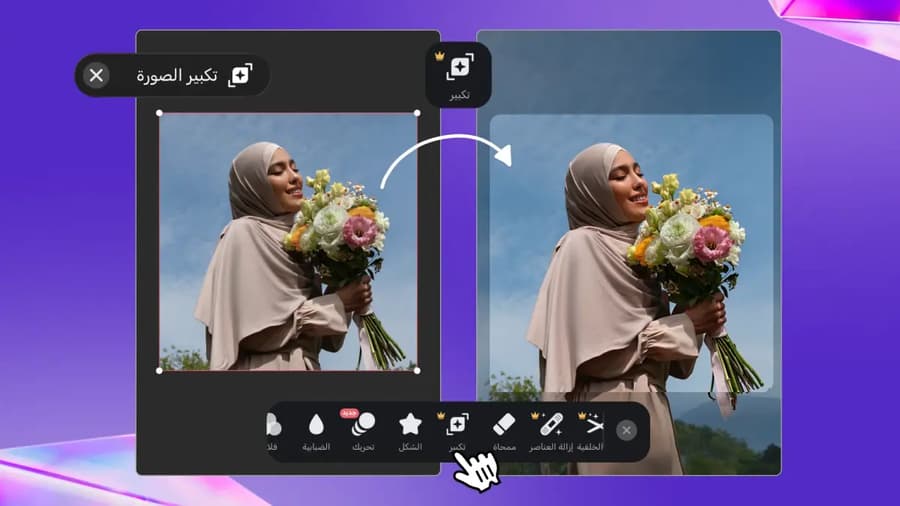
Andalusi's image expander uses AI outpainting to enlarge any photo beyond its original edges, naturally and consistently with its content. Turn a square photo into a 9:16 story size, add space for text, or extend the background to fit any size, without cropping any part of the image and from a single tap.
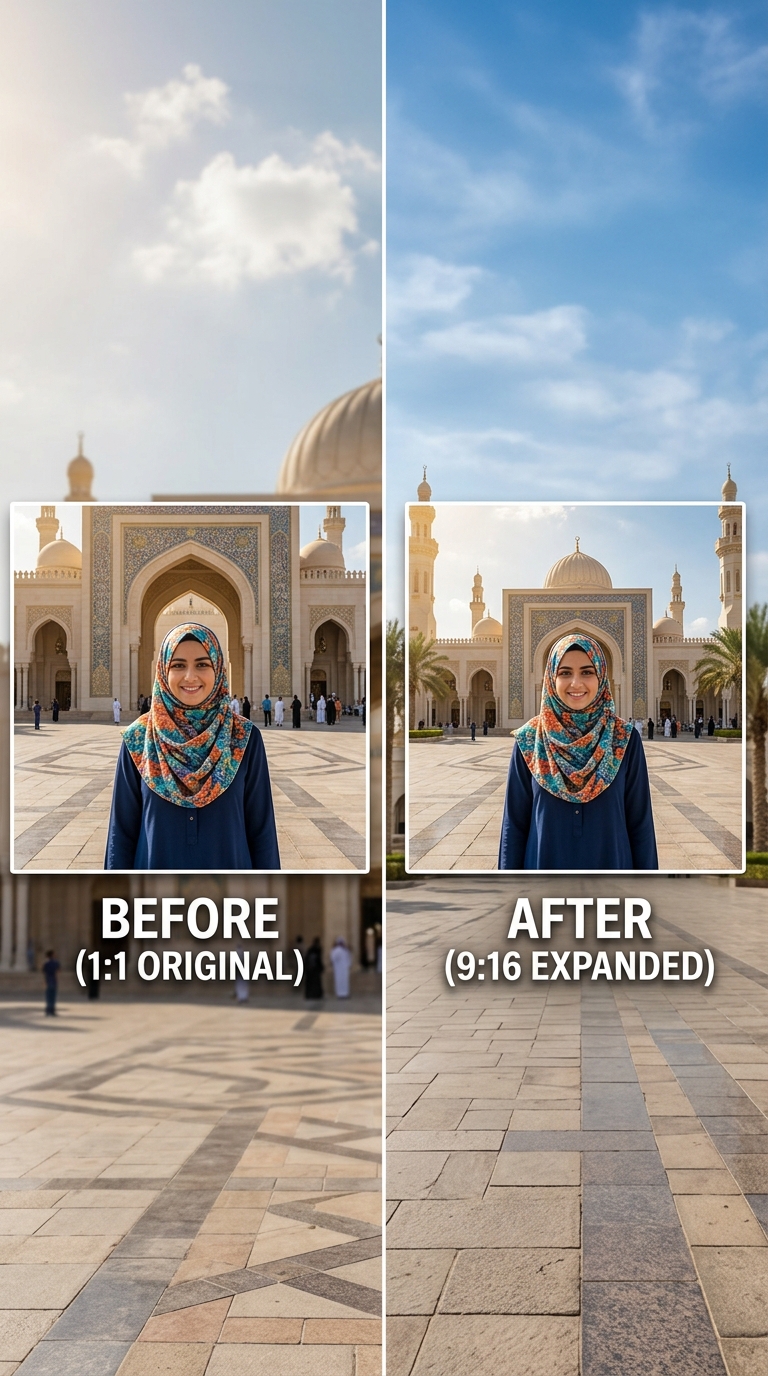
Square to story in seconds
Enlarge any square photo to 9:16 story size for Instagram and TikTok. AI completes the image naturally and consistently with the original content.
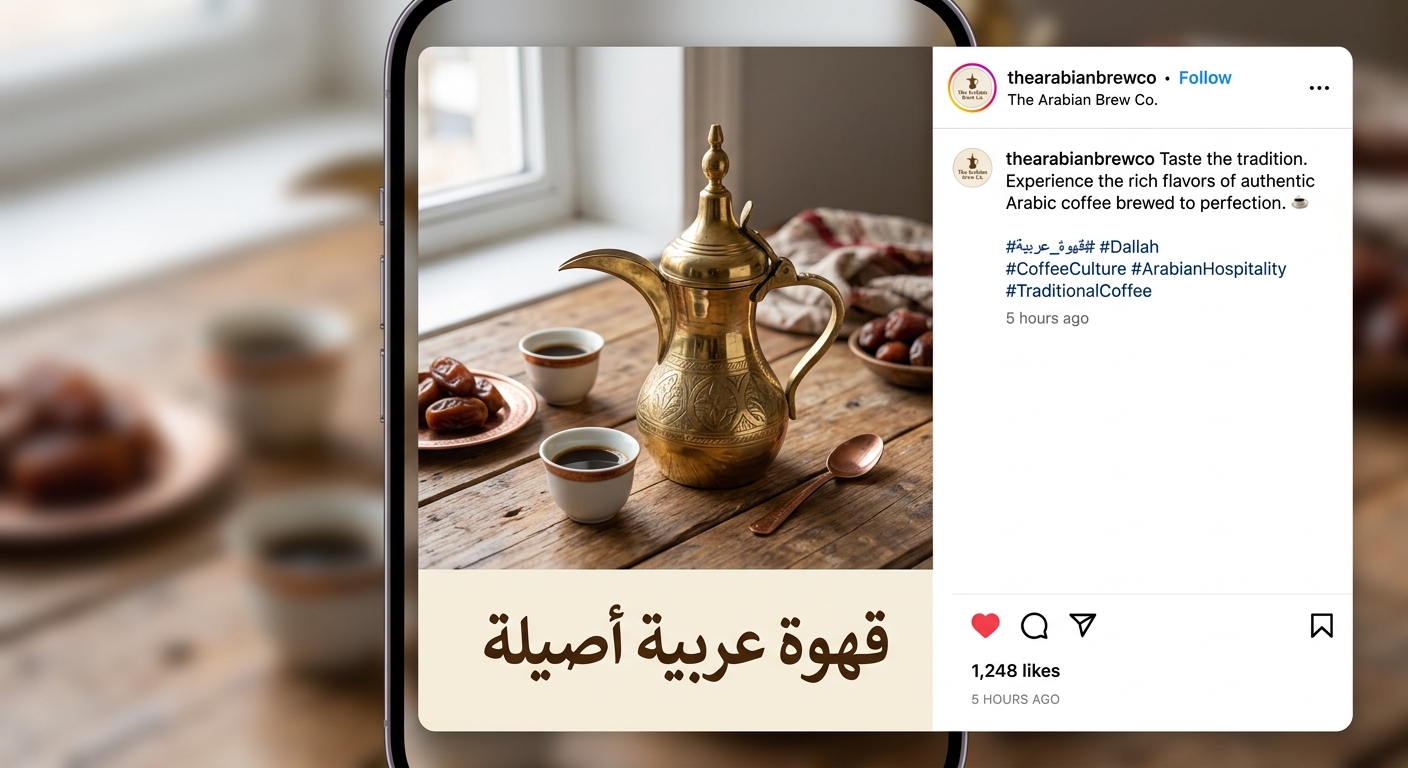
Expand and add room for text
Extend the photo on any side to make space for a headline or a logo, ideal for posts and ads.
AI image expanding, watch it work
Enlarging photos with AI, step by step
A practical walkthrough: add your photo, change the size to story, position the image inside the frame, then tap the expand tool and let AI complete the picture while keeping its detail.
- Change the size to story (9:16)
- Position the image inside the frame
- Tap the expand tool and AI completes the rest
When to use it
Enlarge photos to story size
Turn any square or landscape photo into a 9:16 size for Instagram and TikTok stories.
Add space for text
Expand the photo from the bottom or top to create room for a headline.
Extend the photo background
Expand your photo's background to fit print sizes or large banners.
Simple steps
How to use it
- 1
Add your photo and pick a size
Open Andalusi and add your photo, then change the size to story or any size you want.
- 2
Position the image in the frame
Move and scale the photo so its detail sits well inside the new size before expanding.
- 3
Tap the expand tool
AI completes the new space consistently with the image while preserving its detail.
Frequently asked questions
How do I expand or enlarge an image with AI?
Is there a free AI image expander?
Can I extend a photo without Photoshop?
Does expanding work on product and people photos?
What is the difference between expanding an image and upscaling it?
Download Andalusi for free
Over a million designers use Andalusi. Join them and start designing now.