Install Custom Fonts in Andalusi
Download any font you love and add it to Andalusi to use in your designs, Arabic and Latin fonts from outside the app.
Try it now for freeWhat is this feature?
Andalusi's install-fonts feature lets you add any external font, Arabic or Latin, to the app and use it in your designs alongside the built-in library. Download the font file from any trusted site, install it from your installed-fonts list, and it appears ready to use when you type on your photos and designs, with no app restart. Perfect for using your brand font or a distinctive font you can't find in the library.
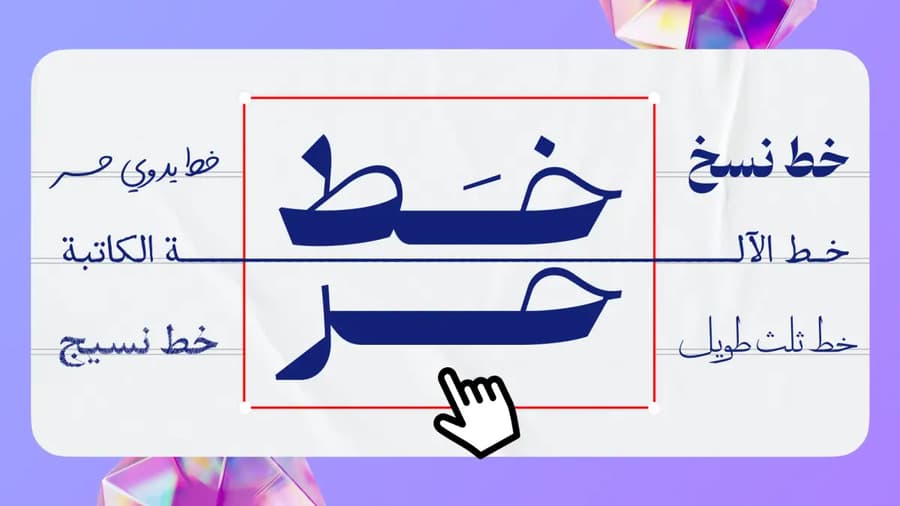
Andalusi's install-fonts feature lets you add any external font, Arabic or Latin, to the app and use it in your designs alongside the built-in library. Download the font file from any trusted site, install it from your installed-fonts list, and it appears ready to use when you type on your photos and designs, with no app restart. Perfect for using your brand font or a distinctive font you can't find in the library.
How to install any font in the Andalusi app
A hands-on walkthrough: download the font to your device, install it from the installed-fonts list, and it appears ready to use as you type.
- Download the font and save it to your device
- Install it from your installed-fonts list
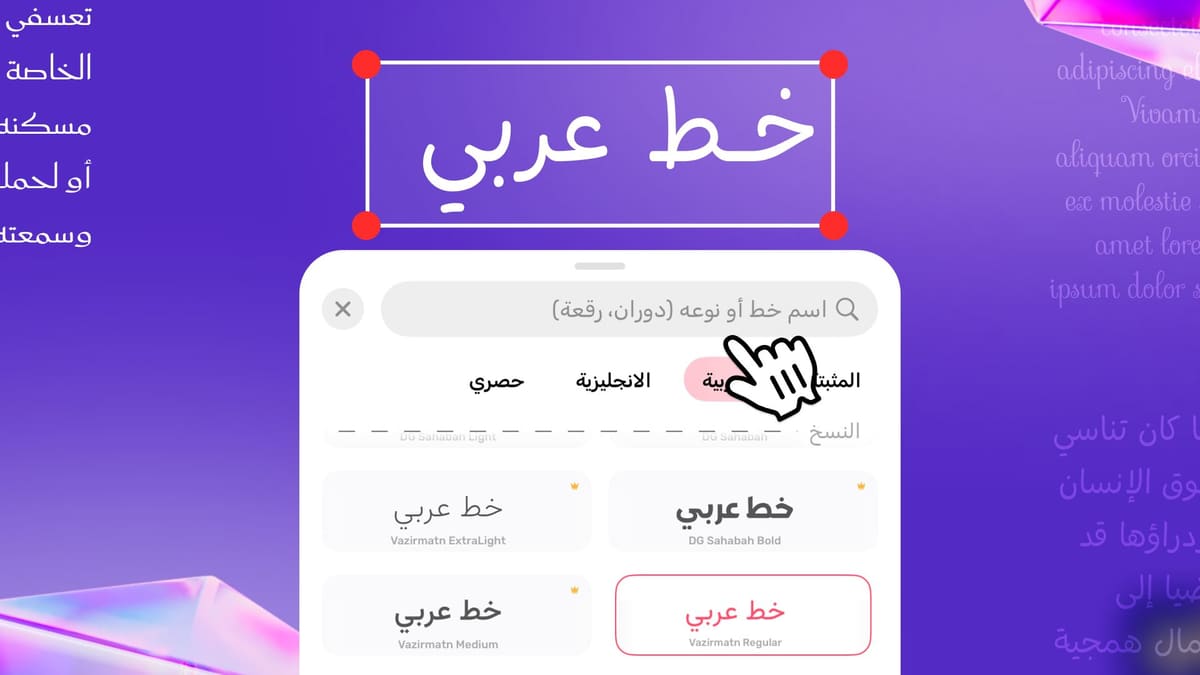
- It appears right away, use it in your design
When to use it
Your brand font
Install your brand identity font so your designs use your official brand typeface.
Fonts not in the library
Add any distinctive font you downloaded online that isn't in Andalusi's library.
Latin and foreign fonts
Install specific Latin or foreign fonts to use in your bilingual designs.
Consistent content identity
Use the same font across all your posts and stories to keep a consistent visual identity.
Simple steps
How to use it
- 1
Download the font to your device
Download the font file (TTF or OTF) from any trusted font site and save it to your device.
- 2
Open the installed-fonts list
Open the Andalusi app and go to the installed-fonts list.
- 3
Choose install a font
Tap the install-a-font option and pick the font file you downloaded, it appears in the list right away.
- 4
Start a project and type
Start a new project in Andalusi and type the text you want.
- 5
Pick your font from the list
From the installed-fonts list choose your new font, and you'll find it ready to use straight away.
Frequently asked questions
How do I install a new font in Andalusi?
Does the font appear right after installing?
Which font file formats are supported?
What's the difference between installing a font and the built-in library?
Is installing fonts free?
Download Andalusi for free
Over a million designers use Andalusi. Join them and start designing now.